Backdrops - Wallpapers
- 4.6
- Rating
- 5.00M
- Installs
- Free
- Price

 Analysis by App-foxy
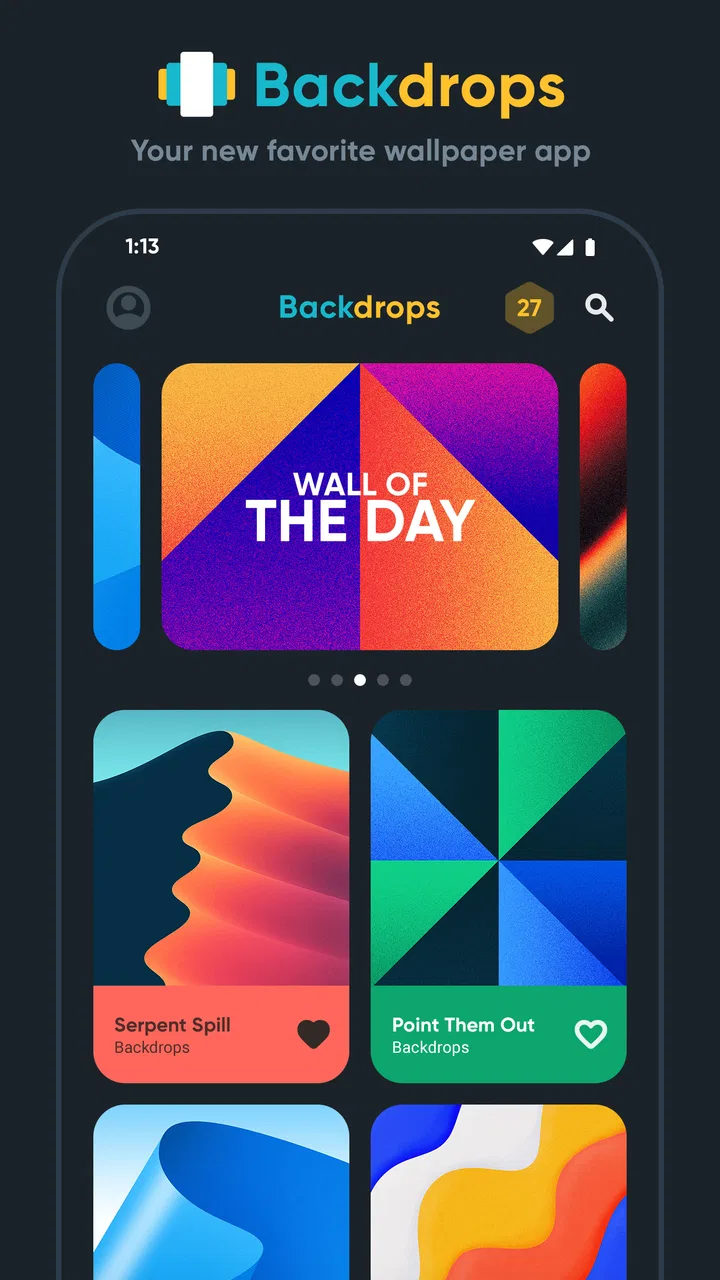
If you are tired of opening your phone to the same background every day, Backdrops - Wallpapers is an easy place to start. I found it more focused than a general image-search app because its purpose is clear: help you discover original-looking backgrounds and put one on your device without turning the process into a design project. It is a free personalization app from Backdrops Dev LLC, rated 4.6 by users, and it has become a familiar choice for people who want a quick visual refresh.
What I like most is that the app encourages browsing rather than making you arrive with a finished idea. You can open it when you want something dark, colorful, calm, geometric, or simply different, then judge each design against your own screen. That makes it useful for a first-time user who does not want to search through random websites or crop images manually.
What to expect when you open Backdrops
The experience is built around wallpaper discovery. Instead of treating your phone background as an afterthought, Backdrops presents it as a small part of your daily style. The collection has a curated feel, so I spend less time filtering out unrelated photographs and more time comparing designs that could genuinely work on a home or lock screen.
You May Also Like

 Blood Strike: 2.5 Anniversary
Blood Strike’s Loadouts Turn Every Drop Into a Tactical Gamble
A close look at Blood Strike’s custom loadouts: how fast access to signature weapons reshapes its battle royale rhythm, rewards preparation, and narrows the gap between fights.

 Pandora - Music & Podcasts
Pandora’s Music Is Easy to Start, but Harder to Recover
Pandora’s strength is its low-effort path from a seed to a station. Its weak spot is how much confidence it asks you to place in connection, setup, and quiet recovery.

 8 Ball Pool
 Is Built on Rivalries, Rematches, and Routine
A close look at the rivalries, rematches, shared routines, and unanswered safety questions that turn a quick pool match into a persistent mobile community.

 Samsung Music
’s Quiet Strength Is Playing What You Already Own
Its reach comes less from spectacle than from dependable access to a personal library. That simplicity is both the app’s strongest retention engine and its ceiling.

 AccuWeather: Weather Radar
AccuWeather Review: A Quick, Clear Forecast for Everyday Decisions
For everyday plans, the best forecast is the one you can understand quickly. AccuWeather makes rain timing, radar, and local conditions easy to act on, with a few trade-offs.

 Hill Climb Racing
Why Hill Climb Racing Still Turns Crashes Into One More Run
A tiny car, a bumpy hill and one more upgrade: Hill Climb Racing keeps resurfacing because its simple chaos makes every near-miss feel personal.
More From Our News Desk



That focus also explains where the app is strongest. If you want a polished background with a graphic, illustrated, abstract, or atmospheric look, it is a better fit than a basic gallery app. If you want a very specific celebrity image, sports photograph, movie still, or personal picture, your own photo library or a broad image-search service will probably get you there faster.
The app is free to install and suitable for Everyone. Its current version is 6.5, and it works on devices running Android 6.0 or later. The large audience is reassuring without being a reason to install blindly: it has passed five million installs and carries around eighty-four thousand ratings, which suggests that the basic workflow has been useful to many different Android users.
I would not describe it as a tool for completely redesigning your phone. It is primarily a wallpaper app, and that narrow purpose is a benefit when you want a result quickly. You are choosing a visual foundation, not building a full theme with custom icons, widgets, sounds, and system colors.
The visual choice is the real feature
My first impression was that the browsing stage matters more than the final tap that applies a background. A good wallpaper has to survive icons, notification text, widgets, and changing light conditions. Backdrops makes it tempting to choose something striking, but I recommend pausing before applying the most dramatic design and checking whether its busiest area will sit behind your icons.
This is one of the app’s less obvious strengths: it gives you a reason to think about your whole screen instead of judging an image as a standalone picture. A design that looks excellent in a preview can become tiring when it competes with app labels. Conversely, a quieter background may make your phone feel cleaner every time you unlock it.
The trade-off is that curated wallpaper browsing can still take time. The app reduces the noise found in a web search, but it does not remove personal choice. If you are hoping for one automatic answer, you may need to scroll through several options before something feels right.
From installation to your first useful result
When I first set out to use Backdrops, I found it helped to treat the task as a screen decision rather than an art search: what needs to remain easy to read, and where do my icons sit? That framing makes the first browse more purposeful and keeps a striking thumbnail from winning by default. I’ll look at how a small, practical goal can turn the app’s discovery experience into a useful result.
Start with a simple goal
After installing Backdrops, I suggest deciding which screen needs attention first. For a practical beginning, choose either the home screen or the lock screen and look for a background that supports readability. This is more useful than immediately trying to create a perfectly matched pair, because you can learn how the app handles the basic selection and application process without making the decision feel complicated.
Give yourself a small brief: perhaps a darker background for evening use, a clean pattern for crowded icons, or a softer image for a less distracting home screen. Having that one constraint makes browsing much faster. I often find that “something calm with space around the center” is more helpful than simply searching for “good wallpaper.”
Once you see a design you like, open its preview and inspect the composition rather than relying only on the thumbnail. Look at the corners, the lower portion where many launchers place icons, and the top area where status information may appear. This is a concrete step that prevents a common disappointment: choosing a beautiful image whose important detail disappears behind the phone interface.
Make the first successful action deliberately
Your first meaningful success is not merely finding a wallpaper; it is applying one that still looks good after your icons and text are visible. I recommend selecting a low-contrast or moderately detailed design for this first attempt. It lets you evaluate the app’s workflow and your phone’s layout at the same time.
Use the preview controls carefully and check the available placement choices before confirming. Depending on your device and launcher, the result may look different on the home screen and lock screen, so do not assume that one preview tells the entire story. If the app offers a choice between screens in your version, make that decision consciously rather than accepting the broadest option automatically.
After applying it, return to the home screen and live with it for a minute. Open a folder, read a few labels, and check the lock screen if you selected it there. This quick test is more valuable than repeatedly browsing because it tells you whether the wallpaper works in daily use. If it does not, changing it is simple; your first choice does not need to be permanent.
The best first result is a readable screen, not the most eye-catching image. That small distinction is especially helpful for new users, because wallpaper previews naturally encourage you to judge the artwork without the clutter that appears once the background is installed.
A useful workflow for busy phones
If your home screen contains many apps, begin with a design that has a relatively even background. Strong lines, bright faces, or high-contrast shapes behind icons can make the screen feel busier than it did in the preview. Save those more expressive choices for a lock screen, where they may have more room to breathe.
For a phone used at work or school, I prefer a restrained image with a darker upper section and fewer competing details. For a personal device, I am more willing to use color or texture, but I still check whether the clock and notifications remain easy to read. This is where Backdrops works best as a source of options rather than a substitute for your own judgment.
What can cause confusion during setup
One point that can confuse first-time users is the difference between discovering a design and controlling how it appears after application. A wallpaper may be cropped or positioned according to the phone’s screen shape. If the preview looks slightly different from the final result, that does not necessarily mean the image is poor; it may simply be a mismatch between the artwork’s composition and your display.
Another common issue is treating the home screen and lock screen as if they have identical needs. The home screen is usually covered by icons and widgets, while the lock screen must leave room for time, notifications, and shortcuts. A design that succeeds on one can feel awkward on the other. I recommend assigning the quieter option to the busier screen.
It is also worth remembering that your launcher can affect the final impression. Icon packs, widget placement, and transparency settings may make a wallpaper appear more or less successful. Backdrops supplies the background, but it cannot resolve every layout problem created by the rest of your phone’s personalization choices.
Where the free experience fits
The app is free, which makes experimenting low-risk. There are in-app purchases ranging from $0.99 to $9.99 per item, so you may encounter optional paid elements while exploring. I see that as a reason to browse the free experience first and decide whether the additional material is genuinely useful to you, rather than assuming you need to spend money to get value from the app.
For many people, the free starting point is enough to establish a new look and understand the workflow. If you are especially sensitive to paid prompts, take a moment to read each screen before confirming anything. The important thing is to distinguish between applying a background and choosing an optional purchase; those are separate decisions.
Getting more from the app without overcomplicating it
After the first wallpaper is in place, I find the best way to keep exploring is to learn from how it behaves during ordinary phone use. A quick check of the lock screen, home screen, and widget layout can reveal which compositions suit your device, giving your next browse a clearer direction without turning personalization into a chore.
Use wallpaper changes as a small reset
I found Backdrops most useful when I treated it as a small routine rather than an app I needed to explore endlessly. A background change can mark a new semester, a move, a change in work schedule, or simply a desire to make an old phone feel fresher. Because the action is visual and immediate, it can have more impact than spending time rearranging every icon.
A realistic example is a busy weekday morning. You notice that your current background is too bright, the clock is difficult to read, and your home screen feels cluttered. Instead of searching the wider internet, you open Backdrops, choose a darker design with open space near the center, preview it with your layout, and apply it. In a few minutes, the phone is easier to read without requiring a complete redesign.
That workflow is also useful when setting up a phone for another person. Someone who is not comfortable editing images can browse a focused selection, choose a readable design, and get a finished result with less technical work. I would still let them make the final choice, because wallpaper is personal and a technically clean screen may not feel like their own.
Choose for the screen, not just the thumbnail
Here is a practical tip I wish more wallpaper apps emphasized: inspect where visual weight sits. If the most detailed part of an image is placed where your icons appear, the background may look crowded even when the artwork itself is excellent. Try to match the composition to your layout. A sparse lower half is helpful when your main app row sits there; a calmer top area helps when the status bar and clock are prominent.
Another useful trade-off concerns color. Bright backgrounds can make a phone feel lively, but they may also reduce legibility and feel harsh at night. Dark backgrounds can look elegant and make icons stand out, though very subtle details may disappear in low brightness. I would choose based on when you use your phone most, not only on how the image looks in a brightly lit preview.
If you use widgets, leave them room. A weather widget or calendar can cover the exact feature that made you choose a wallpaper. Before applying a design, imagine the full home screen rather than the empty preview. This single habit makes the app feel more successful because you are selecting with the final arrangement in mind.
Who should use it, and who should skip it
Backdrops is a strong match for someone who wants original-feeling backgrounds, prefers browsing to creating, and wants a straightforward way to refresh an Android phone. It is also a good fit for users who value visual consistency but do not want to install a complete theme system. The Everyone rating and broad device compatibility make it approachable for a wide range of users.
I would skip it if your main goal is to use personal photographs, edit images extensively, or control every part of the interface from one place. A photo editor is better when you need text, collages, precise cropping, or color adjustments. A full launcher or theme tool is better when your priority is changing icons, gestures, widgets, and layout behavior together.
It may also be the wrong choice if you dislike browsing collections and already have a carefully organized folder of backgrounds. In that case, your gallery is faster. Backdrops earns its place when discovery is part of the experience and you want help finding something you would not have selected on your own.
How it compares with ordinary alternatives
Compared with downloading an image from a web search, Backdrops feels more convenient because the content is presented specifically for phone personalization. You spend less effort checking whether an image will suit a vertical screen, although you still need to consider cropping and icon placement. Web searches remain better for highly specific subjects and personal interests.
Compared with a standard gallery, Backdrops offers inspiration instead of storage. Your gallery is ideal for family photos and images you already trust; this app is more useful when you want a fresh visual direction. Compared with a full customization suite, it is narrower and easier to understand, but it will not replace tools that manage icons, widgets, or launcher behavior.
That middle position is the reason I would recommend it to a friend who says, “I want my phone to look different, but I do not want a project.” It provides more discovery than a gallery and less complexity than a full theme system. The limitation is equally clear: the experience depends on finding a design that fits your taste and your screen.
What to do after the first wallpaper
Once your first choice is installed, do not immediately replace it just because another thumbnail looks exciting. Use the phone normally for a while. Check it in daylight, in a darker room, with notifications present, and with the apps you use most often. This reveals whether the design is comfortable or merely impressive in a preview.
If it works, note what made it successful: perhaps the empty space, muted colors, or clear separation behind icons. Use that observation to guide your next search. If it fails, identify the exact problem rather than abandoning the whole app. Maybe the image was too busy near the dock, too bright at night, or poorly suited to the lock screen. That diagnosis will help you choose better the next time.
My overall view is positive because Backdrops makes a small personalization task feel intentional without making it technical. It is free to begin, has a mature presence since its release on October 27, 2015, and remains focused on the part of phone customization many people actually want: finding a background that makes the device feel more like theirs.
Backdrops - Wallpapers is worth trying if you want a curated starting point and a quick visual refresh. I would approach it with realistic expectations: it is not a complete theme manager, and the best result still depends on matching the artwork to your icons, widgets, and daily habits. Start with a readable design, preview it in the context of your screen, and let the first successful choice guide your later experiments.
FAQs for Backdrops - Wallpapers
01What is Backdrops - Wallpapers?
Backdrops - Wallpapers is a wallpaper application designed for users who want to refresh the look of their Android device with curated artwork and backgrounds. The app combines original designs with a browsing experience that makes it easy to discover wallpapers by style or category. It is aimed at people who prefer distinctive, creative images instead of relying only on the standard wallpapers included with their phone.
02Does Backdrops - Wallpapers offer free wallpapers?
Yes, Backdrops - Wallpapers includes a selection of wallpapers that can be accessed without paying, although the exact collection may vary as the app is updated. Some additional designs, collections, or features may be reserved for premium users. Before downloading an image, it is worth checking whether it is marked as free or premium, especially if you want to avoid an unexpected purchase or subscription.
03Can I use Backdrops wallpapers on both my home screen and lock screen?
The app generally allows you to download or apply wallpapers to your device, and Android users can usually choose whether an image is used on the home screen, lock screen, or both. The available options can depend on the Android version, device manufacturer, and system settings. If direct application does not work as expected, you can save the image and set it manually through your phone’s wallpaper settings.
04Does Backdrops - Wallpapers require an internet connection?
An internet connection is normally needed to browse the online wallpaper catalog, load new artwork, and download images to your device. Once a wallpaper has been saved, it can usually be used offline because the file is stored locally. However, features such as discovering fresh content, syncing favorites, or accessing account-related collections may still require mobile data or Wi-Fi.
05Is Backdrops - Wallpapers safe and worth downloading?
Backdrops - Wallpapers is a practical choice for users who enjoy regularly changing their device’s appearance and prefer curated artwork over generic stock images. As with any wallpaper app, you should review the permissions requested, download it from an official store, and check its privacy information before creating an account. Also consider advertisements, premium content, and storage or data usage when deciding whether it suits your needs.
Pros
- Large collection of polished
- original wallpapers
- New designs are added regularly by the community
- Simple interface makes browsing and saving wallpapers easy
- Supports wallpaper previews before applying them
- Many backgrounds are available without a subscription
Cons
- Some of the best collections require a paid upgrade
- Image quality and style can vary between community submissions
- Downloading high-resolution wallpapers may use considerable data
- Ads can interrupt browsing in the free version
- Limited editing tools compared with dedicated wallpaper apps

Backdrops - Wallpapers
Gallery